AI Templates & Resources
10 ChatGPT & Claude Prompt Templates for Everyday Tasks in 2026

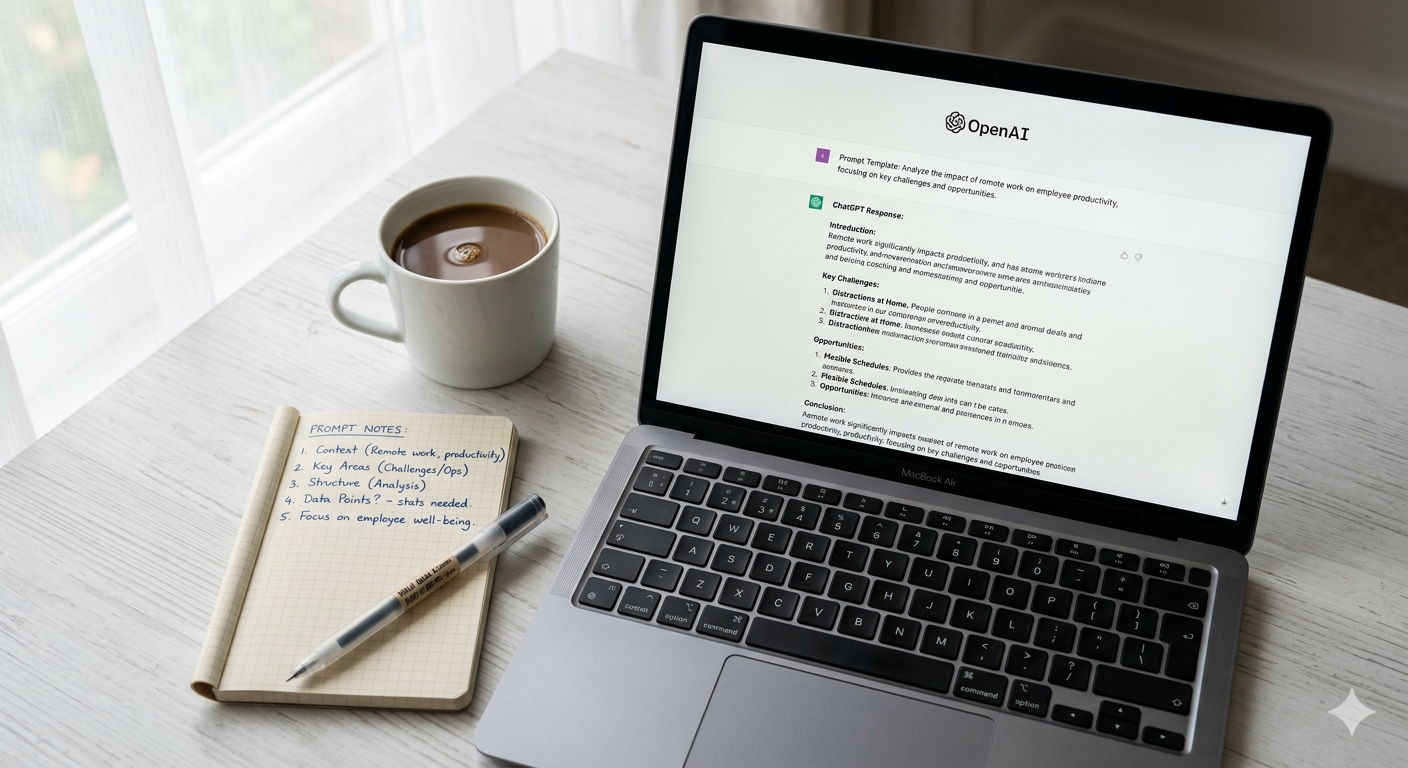
I used to think prompt templates were a waste of time.
You know the kind — “act as a world-class copywriter with 30 years of experience and a PhD in persuasion.” That stuff always felt forced. Generic. Like someone trying to game the AI instead of just talking to it.
But here’s the thing I learned after two years of daily AI use.
Templates aren’t about tricking the AI. They’re about not repeating yourself fifty times a week.
Every time you write “summarize this meeting into action items” or “make this email sound friendlier” from scratch, you’re burning mental energy on something a saved template could handle in two seconds.
So I built ten. They’re simple. They’re copy-paste ready. And I use every single one of them regularly.
What Makes a Good Template (And What Doesn’t)
Before I share them, a quick word on why most templates suck.
Bad templates are too long. They front-load the AI with seven paragraphs of context and a fake resume before getting to the actual task. That works once or twice. Then it gets exhausting.
Good templates do three things:
- They’re clear about what output you want
- They leave space for your specific input (marked with brackets)
- They’re short enough to remember
The ones below follow those rules. No fluff. No “you are an expert” nonsense unless it actually helps.
10 Prompt Templates I Actually Use
1. Email Reply (Friendly Tone)
Use this when someone sends you an email and you want to respond quickly without sounding cold.
text
Reply to this email in a warm, friendly tone. Keep it under 4 sentences. Acknowledge their point, answer their question if there is one, and end with a natural closing.

Here's the email:
[Paste email here]
Why it works: Gives the AI a tone target and a length limit. Without the sentence cap, it tends to ramble.
2. Summarize a Long Article or Report
Perfect for those “I need the gist but don’t have 20 minutes” moments.
text
Summarize this text in 5 bullet points. Each bullet should be one sentence. Focus on actionable insights and key takeaways. Skip background fluff.

Here's the text:
[Paste text here]
Why it works: The “actionable insights” instruction prevents the AI from just grabbing the first five sentences. It forces actual evaluation.
3. Brainstorm Blog Post Ideas
Writer’s block hits everyone. This clears it in 30 seconds.
text
I run a [type of site/business] about [topic]. My audience is [describe audience]. Give me 10 blog post ideas with catchy titles. Each idea should solve a specific problem my audience has. No generic filler topics.
Example filled in:
“I run a productivity blog about AI tools. My audience is freelancers and small business owners who feel overwhelmed by tech. Give me 10 blog post ideas with catchy titles. Each idea should solve a specific problem my audience has. No generic filler topics.”
Why it works: The context upfront saves back-and-forth. The “no generic filler” line genuinely improves output quality.
4. Improve Email Clarity
For when you’ve written something but it feels clunky.
text
Rewrite this email to be clearer and more concise. Cut unnecessary words. Keep the original tone but make it flow better.

Here's the email:
[Paste your draft]
Why it works: Simple. Direct. No personality theater. Just “make this better, same vibe, fewer words.”
5. Turn Meeting Notes Into Action Items
This one saves me hours every month.
text
From these meeting notes, extract a list of action items. Format as:
- Task (who's responsible if mentioned)
- Deadline (if mentioned)
- One sentence of context

If no owner or deadline is specified, write "TBD."

Here are the notes:
[Paste notes]
Why it works: The structured output format prevents the AI from giving you a vague paragraph. You get a clean list you can drop straight into your task manager.
6. Rewrite for Different Tones
Same message, different audience. This template handles the switch.
text
Rewrite the following message in a [formal/casual/persuasive/friendly] tone. Keep the core meaning identical. Don't add new information.

Message: [Paste message]
Why it works: The “don’t add new information” rule is critical. Without it, AI tends to embellish.
7. First Draft of Anything
Starting from a blank page is the hardest part. This template removes that friction.
text
Write a rough first draft of a [type of content] about [topic]. It should be around [word count] words. Don't overthink it. I'll edit heavily later. Just give me something to work with.

Key points to include:
- [Point 1]
- [Point 2]
- [Point 3]
Why it works: Giving the AI permission to be imperfect (“rough first draft”) produces more natural output. It stops trying so hard.
8. Compare Two Options
Use this for decisions big and small.
text
Compare [Option A] and [Option B] for [specific use case]. Give me a balanced list of pros and cons for each. Then give me a clear recommendation based on my use case. Don't sit on the fence.

Use case: [describe your situation]
Why it works: “Don’t sit on the fence” is the magic phrase. It overrides the AI’s default hesitation to pick a side.
9. Explain Something Simply
When you’re learning a new concept and don’t want textbook language.
text
Explain [concept] in plain English. Use simple analogies and short sentences. Write as if you're explaining it to a smart friend who knows nothing about the topic. No jargon.

Concept: [What do you want to understand?]
Why it works: “Smart friend who knows nothing” sets the right level — not patronizing, not technical.
10. Weekly Review & Plan
Sunday evening ritual, simplified.
text
Help me do a weekly review. I'll share what I accomplished this week and what felt stuck. Then help me set 3 priorities for next week. Keep the focus practical and specific.

Here's my week:
[Share wins, challenges, unfinished tasks]
Why it works: Open-ended enough to handle whatever you throw at it. Structured enough to produce a useful output. The “3 priorities” limit prevents overwhelm.
How to Save These So You Actually Use Them
Templates are useless if they live in a document you never open.
Here’s what I do:
- ChatGPT: Save each template as a Custom Instruction or drop them in a dedicated “Templates” folder in your chat history. Pin the folder.
- Claude: Create a Project called “Templates.” Upload all ten as a single document. Claude references them when needed.
- Notion or Google Docs: Keep a master list with headings. Copy and paste takes five seconds.
- Text expansion tool: Apps like TextExpander or Espanso let you assign shortcuts. Type
;emailreplyand the whole template pops in.
Pick one method. Doesn’t matter which. Just make accessing these faster than typing from scratch.
Make These Your Own
The best templates are the ones you tweak over time.
Maybe you discover that “4 sentences” is too short for your emails. Change it to 6. Maybe you prefer bullet points over paragraphs in responses. Add that instruction.
These are starting points. Use them for a week. Notice what bugs you. Adjust. After a month, you’ll have ten templates that fit you like a glove — not some generic version I wrote.
Over to You
Which of these templates would you actually use? Got one of your own that saves you time every week?
Drop it in the comments. I’m always looking for new ones to test, and the best reader submissions get featured in a follow-up post.
Bookmark this page if you’ll want it later. And if you know someone who still writes every prompt from scratch, send them this — they’ll owe you one.



10 ChatGPT & Claude Prompt Templates for Everyday Tasks in 2026

GPT-5 vs Claude 4 vs Gemini Ultra 2 – Hands-On Comparison After Daily Use in 2026

Mobile Google CEO Promises 11 Daydream-compatible phones
-
 News & Trends9 years ago
These ’90s fashion trends are making a comeback in 2017
-
News & Trends9 years ago
Boxing continues to knock itself out with bewildering, incorrect decisions
-
News & Trends9 years ago
The final 6 ‘Game of Thrones’ episodes might feel like a full season
-
News & Trends9 years ago
The 9 worst mistakes you can ever make at work
-
News & Trends9 years ago
According to Dior Couture, this taboo fashion accessory is back
-
News & Trends9 years ago
The old and New Edition cast comes together to perform
-
News & Trends9 years ago
Phillies’ Aaron Altherr makes mind-boggling barehanded play
-
News & Trends9 years ago
Steph Curry finally got the contract he deserves from the Warriors